Performance Analyzer is a cool tool for Dynamics products suite to capture and analyze application performance counters. It provide handy SPs and DB Views to get various sorts of performance information. More information and tool itself can be found from:
http://code.msdn.microsoft.com/DynamicsPerf
Together with PAL (Performance Analysis of Logs), one can consume the power of this tool more effectively. PAL is an open source tool and can be downloaded from:
http://pal.codeplex.com/
Showing posts with label AX2009. Show all posts
Showing posts with label AX2009. Show all posts
Monday, January 10, 2011
Tuesday, November 23, 2010
Accessing Dynamics AX client using Terminal Services
Continuing my efforts to take advantage of virtualization for Dynamics AX deployment, I used Windows Server 2008 terminal services to access AX client application from another machine (with Windows Vista Ultimate). I used the normal procedure of installing terminal services from the following article:
http://www.virtualizationadmin.com/articles-tutorials/terminal-services/general/working-terminal-services-remote-applications-part1.html
Using the TS RemoteApp Manager on server machine, I allowed AX2009 client application to be accessed remotely by creating an .rdp file and through TS Web Access. On the client machine, I accessed the terminal server using the URL something like http://servermachine/ts (you might need to use fully qualified server machine name like servermachine.mydomain.com) and was able to see the AX client application listed in the browser window. Just click the application icon and AX client will get opened just like you are accessing it locally on the client machine.
You can also use the application specific .rdp file, change its icon (one that your normally use for AX client) and paste it on the client desktop or leave it on the shared network location as you like.
http://www.virtualizationadmin.com/articles-tutorials/terminal-services/general/working-terminal-services-remote-applications-part1.html
Using the TS RemoteApp Manager on server machine, I allowed AX2009 client application to be accessed remotely by creating an .rdp file and through TS Web Access. On the client machine, I accessed the terminal server using the URL something like http://servermachine/ts (you might need to use fully qualified server machine name like servermachine.mydomain.com) and was able to see the AX client application listed in the browser window. Just click the application icon and AX client will get opened just like you are accessing it locally on the client machine.
You can also use the application specific .rdp file, change its icon (one that your normally use for AX client) and paste it on the client desktop or leave it on the shared network location as you like.
Tuesday, November 9, 2010
AX2009 Development Licences
I was asked to clarify how AX2009 development licence works and what are the different development licences one needs to have in order to take complete development environment. Actually, you need to have four development licences:
Base Application: This will allow to have access to UI elements like Menus, Forms.
MorphX Development Suite: With this licence you will be able to see the Data Dictionary and other UI objects (reports etc).
Web MorphX Development Suite: Controls access to web development objects in AOT.
X++ Source Code: This licence allows to have access to Class objects in AOT.
Base Application: This will allow to have access to UI elements like Menus, Forms.
MorphX Development Suite: With this licence you will be able to see the Data Dictionary and other UI objects (reports etc).
Web MorphX Development Suite: Controls access to web development objects in AOT.
X++ Source Code: This licence allows to have access to Class objects in AOT.
Wednesday, October 27, 2010
Using Surface Area Configuration Tool for SQL Server 2005
Although I was aware of the surface area configuration tool for SQL Server but honestly I never used it. In a scenario where I had two VMs running on Windows 7 host OS, one with AX2009 AOS, client etc installed while the other VM only had SQL Server 2005 on it. The goal was to let AOS communicate with SQL in this virtual environment. Using the configuration tool on SQL VM, I was able to do this by allowing remote connections to this SQL from the AOS VM. Take a look at this KB article from MS:
http://support.microsoft.com/kb/914277
For SQL 2008, the tool has been taken away and I believe the SQL Server Configuration Manager now takes care of remote connectivity.
http://support.microsoft.com/kb/914277
For SQL 2008, the tool has been taken away and I believe the SQL Server Configuration Manager now takes care of remote connectivity.
Tuesday, October 19, 2010
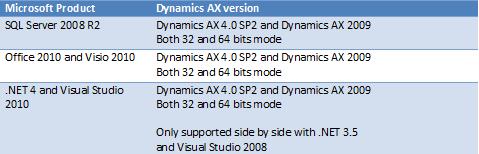
New Compatibility Study for MS Dynamics AX4.0 and AX2009
Friday, October 15, 2010
AX4.0 to AX2009 Upgrade (Functional)
Scenario (Functional Upgrade)
• Your task is to upgrade the current AX version to AX2009 in Production environment.
• The existing system contains lots of customizations on different layers, so a functional upgrade is required.
Below are the steps that you will perform:
1. Take the backup of AX4.0 database.
2. Take the backup the application files (*.aod, *.ahd, *.ald, *.add, *.khd) from Drive:\Dynamics AX 4.0\Application\Appl folder for layers BUS, VAR, CUS, USR and respective patch layers. Please make sure to copy the files only for the respective configuration. If using standard configuration, the path should be Drive:\Dynamics AX 4.0\Application\Appl\Standard. We are doing this because of customizations exist in these layers and we need to take them over to AX2009.
3. Also backup the application files (*.aod, *.ahd, *.ald, *.add, *.khd) from Drive:\Dynamics AX 4.0\Application\Appl folder for layers SYS, GLS. Please make sure to copy the files only for the respective configuration. If using standard configuration, the path should be Drive:\Dynamics AX 4.0\Application\Appl\Standard. The whole idea is to compare the previous application code with the new one while upgrading.
4. Next step is to run AX2009 setup from available media.
5. During installation when asked, select the existing AX4.0 database.
6. After the installation is completed, install AX2009 SP1 if required.
7. Do not start AX2009 AOS instance already created.
8. Now put the application files you took backup in step#2 to Drive:\Microsoft Dynamics AX\50\Application\Appl\. If found, delete the axapd.aoi file from the “Appl” folder. The update index file will get created once we will start the AOS in later step.
9. Create a folder named “Old” in AX2009 application folder (for example Drive:\Microsoft Dynamics AX\50\Application\Appl\\Old) and copy the files from step#3 into the “Old” folder.
10. Start the AOS for AX2009.
11. Start AX2009 client. The Upgrade checklist will get displayed. Complete the steps to continue upgrading. If you stuck in any issue, refer to AXUpgradeGuide.pdf file from partner source.
My next post will point out some of the lessons learned while upgrading.
• Your task is to upgrade the current AX version to AX2009 in Production environment.
• The existing system contains lots of customizations on different layers, so a functional upgrade is required.
Below are the steps that you will perform:
1. Take the backup of AX4.0 database.
2. Take the backup the application files (*.aod, *.ahd, *.ald, *.add, *.khd) from Drive:\Dynamics AX 4.0\Application\Appl folder for layers BUS, VAR, CUS, USR and respective patch layers. Please make sure to copy the files only for the respective configuration. If using standard configuration, the path should be Drive:\Dynamics AX 4.0\Application\Appl\Standard. We are doing this because of customizations exist in these layers and we need to take them over to AX2009.
3. Also backup the application files (*.aod, *.ahd, *.ald, *.add, *.khd) from Drive:\Dynamics AX 4.0\Application\Appl folder for layers SYS, GLS. Please make sure to copy the files only for the respective configuration. If using standard configuration, the path should be Drive:\Dynamics AX 4.0\Application\Appl\Standard. The whole idea is to compare the previous application code with the new one while upgrading.
4. Next step is to run AX2009 setup from available media.
5. During installation when asked, select the existing AX4.0 database.
6. After the installation is completed, install AX2009 SP1 if required.
7. Do not start AX2009 AOS instance already created.
8. Now put the application files you took backup in step#2 to Drive:\Microsoft Dynamics AX\50\Application\Appl\. If found, delete the axapd.aoi file from the “Appl” folder. The update index file will get created once we will start the AOS in later step.
9. Create a folder named “Old” in AX2009 application folder (for example Drive:\Microsoft Dynamics AX\50\Application\Appl\
10. Start the AOS for AX2009.
11. Start AX2009 client. The Upgrade checklist will get displayed. Complete the steps to continue upgrading. If you stuck in any issue, refer to AXUpgradeGuide.pdf file from partner source.
My next post will point out some of the lessons learned while upgrading.
Wednesday, October 13, 2010
AX4.0 to AX2009 Upgrade (Technical)
While upgrading from source (AX4.0) to target (AX2009) AX version, there are two possible types of upgrade:
Technical Upgrade
This type of upgrade is performed when there are no new customizations or product features are required.This is the most straight forward upgrade and usually take like a week or so to get completed.
Functional Upgrade
Mostly, the upgrades fall into this category as customers want business specific customizations or new product features. Depending upon the complexity of required customizations, the upgrade time will vary. Required new features are handled outside of the Upgrade project as a separate project.
Scenario (Technical Upgrade)
• Your task is to upgrade the current AX4.0 version to AX2009 in Production environment.
• The existing system does not have any customizations, so a technical upgrade is required.
Below are the steps that you will perform (these steps were practically implemented so slight variations may exist depending upon your scenario):
• Take the backup of AX4.0 database.
• Backup the application files (*.aod, *.ahd, *.ald, *.add, *.khd) from Drive:\Dynamics AX 4.0\Application\Appl folder. Please make sure to copy the files only for the respective configuration. If using standard configuration, the path should be Drive:\Dynamics AX 4.0\Application\Appl\Standard.
• Next step is to run AX2009 setup from available media.
• During installation when asked, select the existing AX4.0 database.
• After the installation is completed, install AX2009 SP1 if required.
• Start AX2009 AOS instance already created.
• Start AX2009 client. The Upgrade checklist will get displayed. Complete the steps to continue upgrading. If you find any DB synchronization errors for Dimension* tables, this is a known issue. Refer to AXUpgradeGuide.pdf on partner source to fix this issue.
In the next post, I will mention the workflow for functional upgrade using a practical scenario.
Technical Upgrade
This type of upgrade is performed when there are no new customizations or product features are required.This is the most straight forward upgrade and usually take like a week or so to get completed.
Functional Upgrade
Mostly, the upgrades fall into this category as customers want business specific customizations or new product features. Depending upon the complexity of required customizations, the upgrade time will vary. Required new features are handled outside of the Upgrade project as a separate project.
Scenario (Technical Upgrade)
• Your task is to upgrade the current AX4.0 version to AX2009 in Production environment.
• The existing system does not have any customizations, so a technical upgrade is required.
Below are the steps that you will perform (these steps were practically implemented so slight variations may exist depending upon your scenario):
• Take the backup of AX4.0 database.
• Backup the application files (*.aod, *.ahd, *.ald, *.add, *.khd) from Drive:\Dynamics AX 4.0\Application\Appl folder. Please make sure to copy the files only for the respective configuration. If using standard configuration, the path should be Drive:\Dynamics AX 4.0\Application\Appl\Standard.
• Next step is to run AX2009 setup from available media.
• During installation when asked, select the existing AX4.0 database.
• After the installation is completed, install AX2009 SP1 if required.
• Start AX2009 AOS instance already created.
• Start AX2009 client. The Upgrade checklist will get displayed. Complete the steps to continue upgrading. If you find any DB synchronization errors for Dimension* tables, this is a known issue. Refer to AXUpgradeGuide.pdf on partner source to fix this issue.
In the next post, I will mention the workflow for functional upgrade using a practical scenario.
Tuesday, August 31, 2010
Virtualization for AX2009 using Hyper-V
Looking at some more options for setting up hardware environment for AX2009, I came to know about the virtualization option using Windows Server 2008 R2. This is really a good way to consolidate the various server roles (in other words machines) onto a single physical machine. Using the Hyper-V technology, we can now have the AOS, Batch Server, Terminal Server on a single machine, however the DB should still be installed on a separate machine at least for Production environment.
Another important thing to remember about Hyper-V is it needs 64-bit processor (either Intel or AMD) and 64-bit version of Windows Server 2008. A general confusion is that one can also use 32-bit version with Hyper-V and this is not true. You may have 32-bit OS as guest OS on virtual machine running inside Hyper-V.
I am looking at more details about this topic particularly by setting up a virtual environment for AX2009 in test environment and will share my experience with all of you.
Another important thing to remember about Hyper-V is it needs 64-bit processor (either Intel or AMD) and 64-bit version of Windows Server 2008. A general confusion is that one can also use 32-bit version with Hyper-V and this is not true. You may have 32-bit OS as guest OS on virtual machine running inside Hyper-V.
I am looking at more details about this topic particularly by setting up a virtual environment for AX2009 in test environment and will share my experience with all of you.
Saturday, August 21, 2010
Recommended Hardware Configuration for MS Dynamics AX2009
While looking for most optimal hardware configuration for a small size AX2009 deployment, I came to know that there is not enough information available either from MS or any of its partners about it. There are a couple of resources like http://www.microsoft.com/dynamics/en/us/using/ax-system-requirements-2009.aspx and benchmark study on partnersource but the resources are not as helpful as there were for AX3.0 or 4.0.
In order to find out these hardware requirements, I had to spend a lot of time on each individual component configuration (DB, AOS, Terminal Server etc) finding out the correct piece of processor, RAM and HDD capacity, Network bandwith etc.
In order to find out these hardware requirements, I had to spend a lot of time on each individual component configuration (DB, AOS, Terminal Server etc) finding out the correct piece of processor, RAM and HDD capacity, Network bandwith etc.
Subscribe to:
Posts (Atom)